TapTock 3.0 |
Metronome |
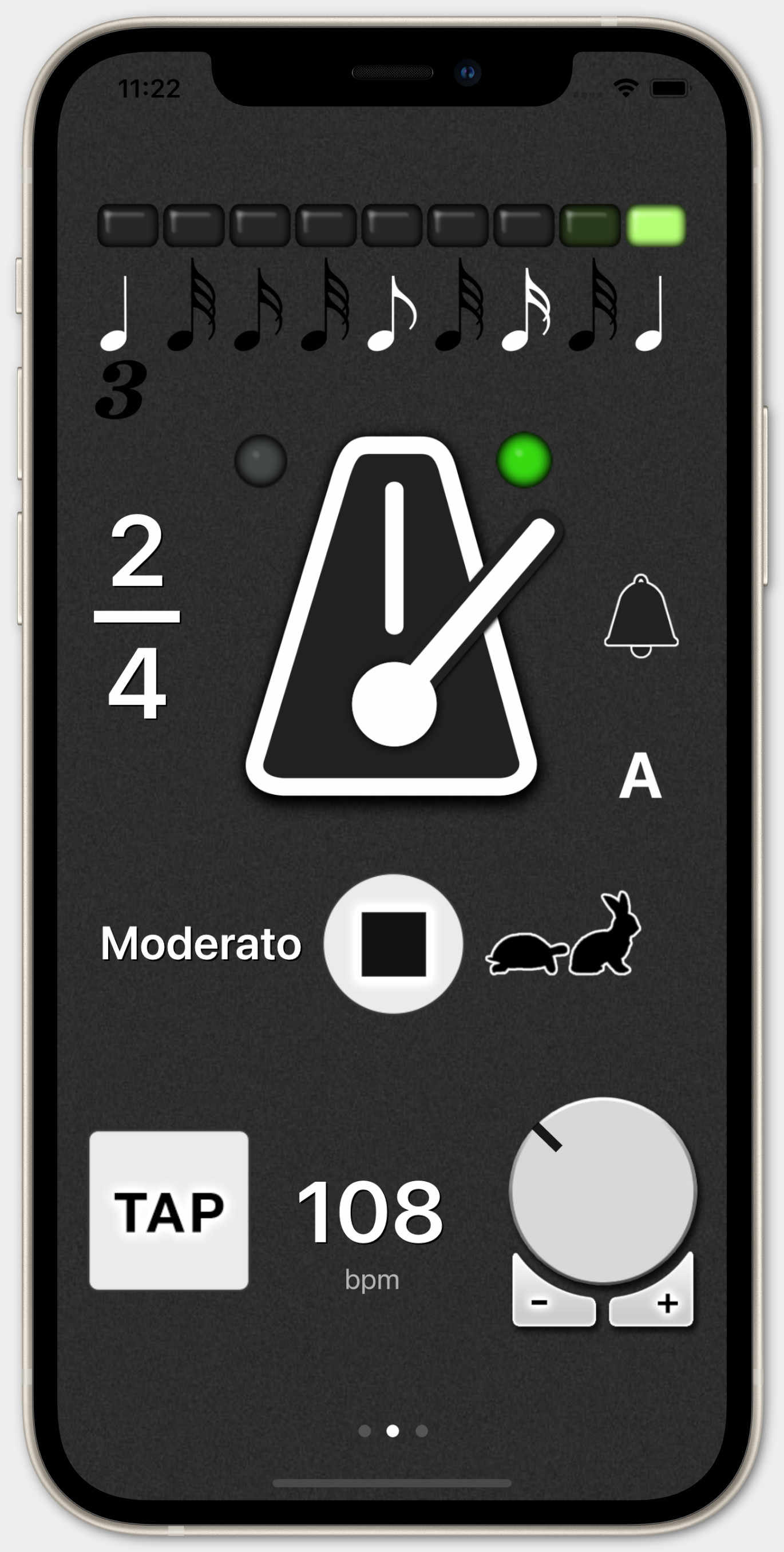
Features
- TAP Tempo
- Create and save your own click patterns
- Turtle-Rabbit-Mode to learn faster
- Create your own presets for quick access
- Sync all your devices via iCloud
Operating System
iOS 15.6 or later
Download

Help |
Metronome view
Swipe right to get to the settings and configurate the metromone to your likings. Swipe right to get to the presets.

|
Turtle-Rabbit-Mode |
In this mode the metronome plays one bar in halved speed and one bar in the normal speed. This mode is made to make quicker progress with your practice.
A, B and AB-Mode |
You can setup two patterns A and B. In AB-Mode the pattern will toggle between A and B after every beat. The metronome will start with pattern A on the first beat. In BA-Mode the metronome will start with pattern B on the first beat.

Settings
Swipe to the right on the main view to get to the settings.
| Ping Pong mode | Make the LED-Stripe bounce |
| Modern metronome look | Activate a different look of the metronome |
| Flash | Flash on every beat. If you use the metronome without sound |
| TAP Tempo with sound | Play a click when you hit the TAP-Button or mute the TAP-Button |
| Classical sound | Switch to an natural sound of a metronome |
| Emphasis on the first beat | Play a special sound on the first beat of every bar |
| Bell sound for the emphasis | Use a bell sound for the emphasis |
| Bell frequency | Set the frequency of the bell |
| Emphasis volume | Set the volume of the emphasis sound |
| Offbeat volume | Set the volume the offbeats. Every beat that is not on a whole beat is called an offbeat. |
| Support | Become a supporter if you like TapTock |
| Give a Rating | Give TapTock a rating and/or review in the AppStore, this helps other users to find the app. |
| Synchronize | Save your presets in your iCloud and synchronize your presets if you are using TapTock on many devices. |
Presets
Swipe to the left to get to the presets. Here you can store your metronome patterns.
To save the presets on your iCloud go to the Settings view.


TapTock, Tap Tempo, iOS, Download, Metronom, Metronome